About Hyper-V Secure Boot
- 1. Background
If Secure Boot is enabled in Hyper-V VM and boot with iVentoy, there are some limitations described here.
- 2. Hyper-V Secure Boot Modes
Hyper-V supports the following Secure Boot modes:
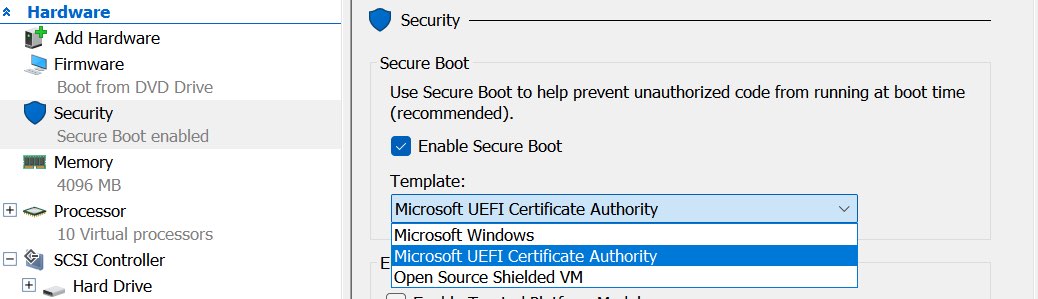
. Microsoft Windows
This mode can only boot Windows ISO and cannot boot iVentoy. If you want to use iVentoy, you cannot select this mode.
. Microsoft UEFI Certificate Authority
This mode can boot Linux ISO and iVentoy, but cannot boot Windows ISO.
. Open Source Shielded VM
This mode is similar to the second mode above. It can also boot Linux ISO and iVentoy, but cannot boot Windows ISO.
- 3. Summary
Due to the limitations of Hyper-V Secure Boot modes, if Secure Boot is enabled on Hyper-V and you also want to use iVentoy,
you can only choose mode 2 or mode 3, and cannot choose mode 1; otherwise, iVentoy cannot boot.
Under the above premise, if the Secure Boot support mode on the iVentoy side is set to Standard mode, then it cannot boot Windows ISOs, and can only boot Linux ISOs such as Ubuntu and Debian.
If you want to boot a Windows ISO, then the Secure Boot support mode on the iVentoy side can only be set to ByPass mode.
It should be noted that this is a limitation specific to Hyper-V. Other virtual machines such as VMware, VirtualBox, QEMU, etc. do not have this limitation.
Updated on 2026/09/11:
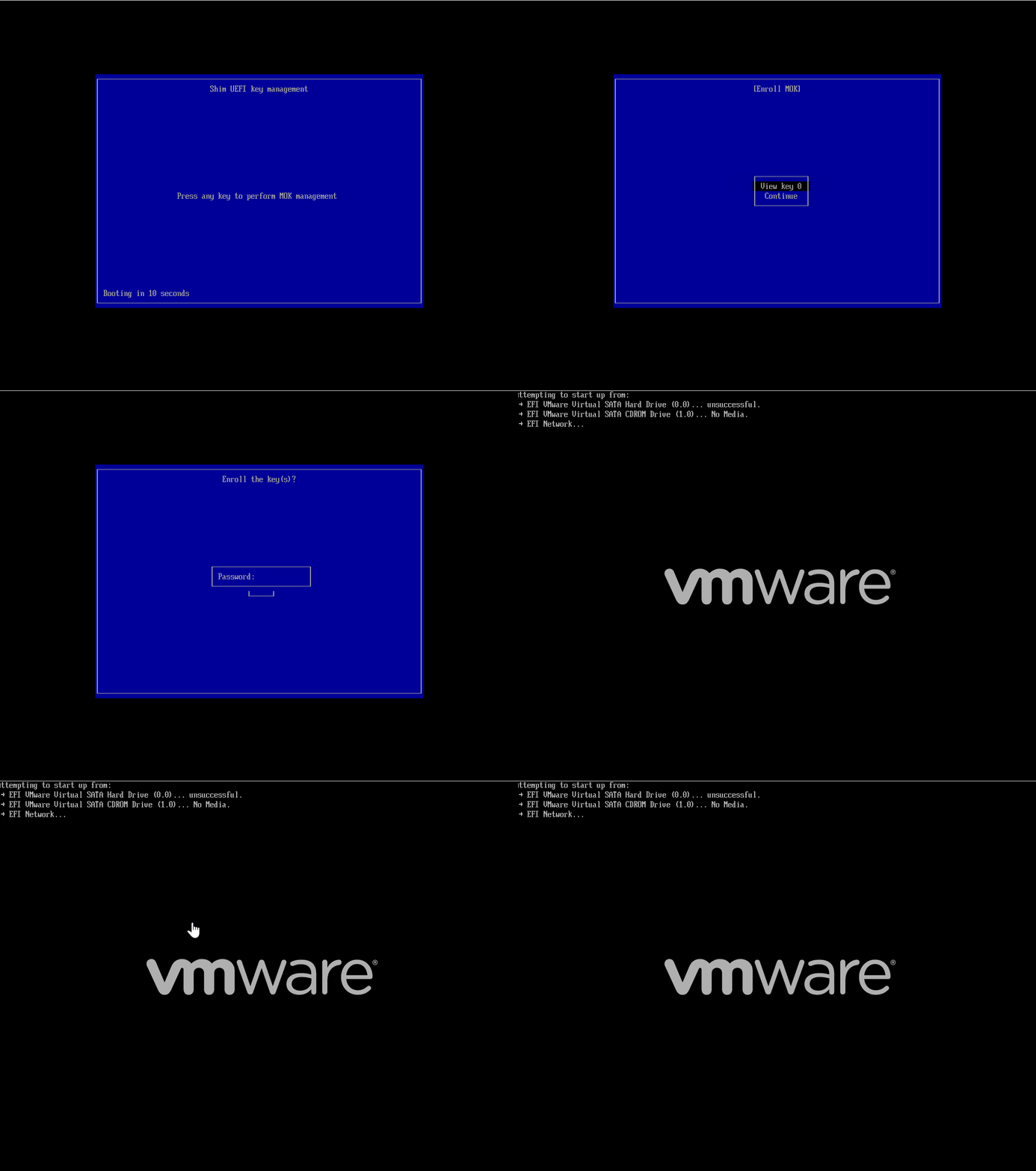
If you select mode 2 or mode 3 and also perform the following steps, booting a Windows ISO can be supported.
In the Hyper-V virtual machine, boot this ISO file via iVentoy: VentoyDeleteKey.iso.
After booting, select the menu 6. Enroll Windows Key to MokDB to import the Windows Key, then restart. After restarting, you need to perform the following operation once the first time: