
iVentoy Windows Service
- 1. Backgroud
iVentoy Windows version has two work mode: normal mode and service mode.
In normal mode, we need to run the exe file manually, exit manually.
In service mode, we can register iVenoy as a system service and make it startup on boot.
- 2. Manual
Just run the InstallService.bat in the package. It will register iVentoy as a system service and make it startup on boot.
- 1. Must start iVentoy in normal mode once before
1. Run iVentoy in normal mode and set ip pool, mask, gateway ... and click the green start button to start iVentoy service.
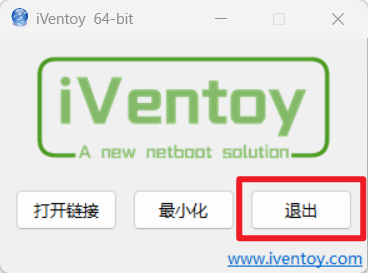
2. Click the quit button in iVentoy.exe GUI as follows:
3. Run InstallService.bat
Then iVentoy will save the selected NIC, IP pool, maks, gateway ...
iVentoy will use these configuration to auto run in service mode.
- 2. Query, Start, Stop Service
Open cmd.exe as administrator and use the following cmd. (The service name must be exactly iVentoy and case must be kept consistent.)
| Operation | CMD |
|---|---|
| Query Service Information | sc qc iVentoy |
| Query Service Current Status | sc query iVentoy |
| Start Service | sc start iVentoy |
| Stop Service | sc stop iVentoy |
- 3. Upgrade
InstallService.bat will register the current version iVentoy exe as a service.
If iVentoy release a new version later, you can run the new InstallService.bat in the new version package, it will only update the exe file path of the service.