
Fully Unattend Installation
- Background
By default iVentoy will list all the iso files and wait for user selection after boot.
While sometimes we just want fully unattended installation after the client enter the PXE boot process.
To achieve this, you need to configure a few options in iVentoy, which will be explained below.
- System Default TimeOut
Set timeout in Configuration page as follows:

0 means never timeout, so if you want fully unattended installation you need to set a non-zero value (e.g. 5 which means 5 seconds)
- System Default Image
Set it in ISO Managementpage, select an ISO file and click Set as default boot file option as follows:

- Set unattended installation script
In ISO Management page, select an ISO file and click the add button to add script as follows:
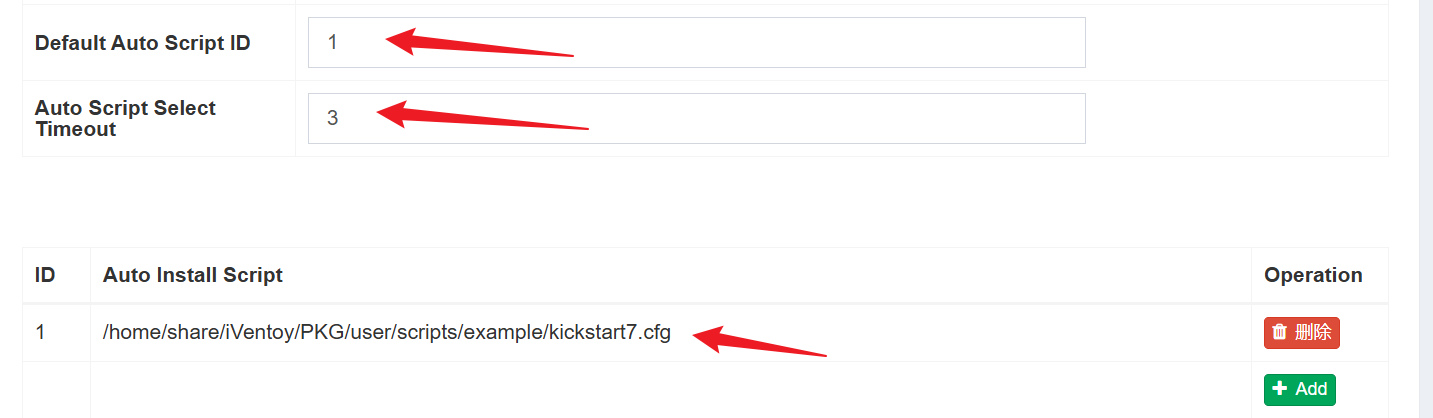
You can specify more than one scripts for an ISO file. Each script will be assigned with an ID from 1.
Choose a default script for this ISO file with the Default Auto Script ID.
PS: 0 means don't use any auto installation script.
You also need to set a non-zero value for Auto Script Select Timeout.
Please refer Auto Installation Script for details about the script.